Remove Background From Video
- 3.3
- Rating
- 1.00M
- Installs
- Free
- Price

 Analysis by App-foxy
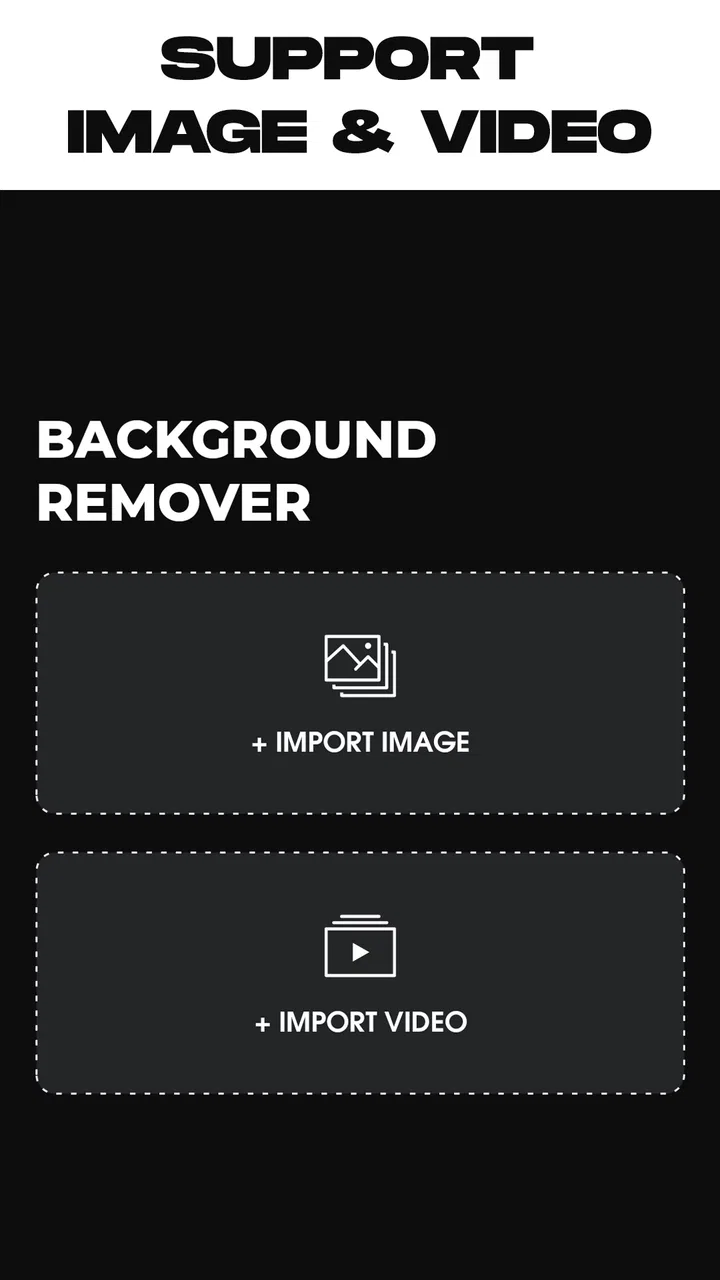
I spent time with Remove Background From Video as a practical beauty and editing tool, and my first impression was clear: it is aimed at people who want to separate a person or object from a photo or video without opening a full desktop editor. That narrow purpose is useful when you need a quick social post, a cleaner profile image, or a short clip with a different-looking backdrop. It is free, rated for Everyone, and developed by HUG APPS, so it is easy to approach even if you are not comfortable with advanced editing software.
The app sits in the Beauty category, although its background-removal functions also make it relevant to casual video editing. Its store summary focuses on removing photo and video backgrounds and changing the setting behind a subject. That description sounds simple, but the real question is whether the workflow feels manageable when you are working with ordinary phone footage rather than a carefully staged studio clip. In my experience, the answer depends heavily on the material you import and how much cleanup you expect.
What it feels like to use for everyday edits
The most useful way to think about this app is as a focused shortcut. Instead of learning layers, masks, keyframes, and selection tools in a larger editor, you begin with the specific task of isolating the foreground. That makes it appealing for a quick portrait video, a beauty-themed post, or a simple image where the background is distracting. I would not approach it as a complete replacement for a full editing suite.
You May Also Like

 Blood Strike: 2.5 Anniversary
Blood Strike’s Loadouts Turn Every Drop Into a Tactical Gamble
A close look at Blood Strike’s custom loadouts: how fast access to signature weapons reshapes its battle royale rhythm, rewards preparation, and narrows the gap between fights.

 Pandora - Music & Podcasts
Pandora’s Music Is Easy to Start, but Harder to Recover
Pandora’s strength is its low-effort path from a seed to a station. Its weak spot is how much confidence it asks you to place in connection, setup, and quiet recovery.

 8 Ball Pool
 Is Built on Rivalries, Rematches, and Routine
A close look at the rivalries, rematches, shared routines, and unanswered safety questions that turn a quick pool match into a persistent mobile community.

 Samsung Music
’s Quiet Strength Is Playing What You Already Own
Its reach comes less from spectacle than from dependable access to a personal library. That simplicity is both the app’s strongest retention engine and its ceiling.

 AccuWeather: Weather Radar
AccuWeather Review: A Quick, Clear Forecast for Everyday Decisions
For everyday plans, the best forecast is the one you can understand quickly. AccuWeather makes rain timing, radar, and local conditions easy to act on, with a few trade-offs.

 Hill Climb Racing
Why Hill Climb Racing Still Turns Crashes Into One More Run
A tiny car, a bumpy hill and one more upgrade: Hill Climb Racing keeps resurfacing because its simple chaos makes every near-miss feel personal.
More From Our News Desk
View All News


A realistic example is a small creator recording a product demonstration at home. The table, furniture, or busy room may pull attention away from the item being shown. A background-removal app can make the clip more suitable for a cleaner composition, especially when the subject stays reasonably distinct from what is behind it. The important trade-off is that the result depends on separation: hair, transparent objects, similar colors, and fast movement are much harder than a person standing still against a plain wall.
I also found that the best results come from preparing the source before importing it. Good lighting, a stable camera, and a little space between the subject and the background give the app a much easier job. This is a more valuable tip than simply pressing the removal button repeatedly. If the original clip is dark and shaky, changing the background afterward will not magically restore missing edges or detail.
The app is most comfortable for short, purposeful edits. A quick profile image, a reaction clip, a beauty tutorial fragment, or a simple promotional visual fits its role well. Longer projects can become less convenient because background removal is only one part of a finished video. You may still need trimming, text, audio work, color correction, or precise timing elsewhere.
Where the focused approach helps
Compared with the usual alternatives, the main advantage is concentration. A general editor gives you more control, but also more places to get lost. A template-based social app may be faster for a complete post, yet it can push you toward preset layouts rather than letting the cutout itself remain the central task. Remove Background From Video is better suited to someone who already knows what they want to isolate and does not want a large editing workspace around it.
That simplicity has a limit. If your project needs a carefully animated mask, several foreground layers, exact frame-by-frame correction, or detailed compositing, a dedicated editor is the better choice. This app can be a convenient first step, but it should not be mistaken for a professional rotoscoping tool. My recommendation changes quickly once accuracy matters more than speed.
There is also a useful distinction between photos and videos. A single photo gives the app one frame to interpret, while a video requires the subject boundary to remain convincing as the person moves. A still image with a clean outline may look excellent even when a moving clip exposes rough edges. I would test the most difficult part of a video before spending time building the rest of the edit.
Trust begins with what you can actually see
Because this kind of tool works with personal images and recordings, I would not judge it only by convenience. The developer is HUG APPS, and the app has reached over half a million installs with an average rating of 3.4 from around seven thousand ratings. That suggests a meaningful user base, but it is not a guarantee that every device, source clip, or editing expectation will produce the same experience.
For me, trust here comes from staying attentive to the choices shown during use. When an app handles photos or videos, I look at the access prompts, the import screen, and any visible options before selecting personal media. I do not assume that a background-removal tool treats every file the same way, and I would avoid granting broader access than the task requires when the operating system offers a narrower choice.
I also recommend checking the exact screen before confirming an import. A user may have private family footage, work material, or an image containing other people. The safest workflow is to select only the file needed for the current edit, avoid using sensitive originals when a copy will do, and remove exported drafts from the device later if they are no longer useful. Those habits are sensible even when an app appears straightforward.
The app is free, which lowers the barrier to trying it, but free access should not be confused with a promise about every aspect of handling or storage. I would read any permission request and any visible notice in the app rather than relying on assumptions. If you are editing confidential client material, identity documents, private family videos, or unreleased work, I would choose a tool whose data practices and account controls you have already reviewed in detail.
Permissions, accounts, and visible choices
One of the first questions a new user may have is whether an account is necessary. The practical answer should come from what the app presents when you open it and begin an edit. I would not create an account merely out of habit. If the workflow lets me select media and work without signing in, that is the route I prefer for a one-off task. If a sign-in screen appears, I would consider whether the added convenience is worth connecting another service to personal content.
The same caution applies to permission prompts. A background remover needs access to the media you choose to edit, but that does not mean I would approve every request without reading it. On Android, the operating system may present different ways to share or select media depending on the device and version. I would use the narrowest visible option that still lets me complete the job, especially when the gallery contains material unrelated to the edit.
There is another moment where user agency matters: exporting. Before saving or sharing, I would check the destination and preview the result. A cutout can look acceptable against one replacement background and obviously rough against another. Bright, high-contrast backgrounds often reveal halos around hair and clothing. A darker or simpler background may hide small imperfections, but that is a presentation choice rather than a repair.
I would also keep the original file untouched. Work from a duplicate when possible, and give the output a recognizable name so it is not confused with the source. This is especially helpful for videos because an unsuccessful export can otherwise replace the only copy of a recording. The app’s focused workflow is convenient, but basic file discipline still belongs to the user.
When the result is convincing—and when it is not
In my testing mindset, I separate “background removed” from “background removed cleanly.” Those are not always the same thing. A subject with a clear outline, steady movement, and good contrast is the ideal case. A person wearing clothing close in color to the wall, a subject with loose hair, or a hand moving quickly across the frame creates a much harder edge for any automated tool.
That trade-off is important for beauty content. Hair and fine accessories are visually significant, so small errors can be more noticeable than they would be in a casual meme. If the purpose is a quick story post, minor softness may be acceptable. If the image is meant to represent a salon, makeup look, or product professionally, I would inspect the hairline, shoulders, fingers, and moving edges at full size before publishing.
A practical workflow is to begin with a short sample rather than the complete recording. Choose the section with the most movement and the most complicated background. If that test looks usable, continue with the larger project. If it fails, you have saved time and can switch to a more manual editor before making other creative decisions around a weak cutout.
Another non-obvious tip is to choose the replacement background after evaluating the mask, not before. Users often select an attractive image first and then discover that its sharp contrast exposes every edge problem. A gently textured or visually quieter background can make the subject feel more natural, while a highly detailed scene demands better separation. The app may complete the removal, but composition still determines whether the final result looks intentional.
Device fit and practical expectations
The app supports Android devices running version 6.0 or later, which gives it a broad compatibility range. Its current version is 3.1, and it was released on February 28, 2022. Those details matter when deciding whether an older phone is suitable for video work: compatibility does not necessarily mean every device will process clips with the same speed or comfort.
On a less powerful phone, I would keep expectations realistic and avoid treating the app like a full workstation. Video processing can be more demanding than editing a still image, particularly when the source is long or high in detail. I would close unnecessary apps, keep enough free storage for an exported copy, and test a short segment first. These steps do not change the app’s capabilities, but they reduce avoidable frustration.
People also ask whether the app is appropriate for children because its content rating is Everyone. That rating makes it broadly accessible, but it does not remove the need for normal supervision around photos, sharing, and permissions. A child may understand how to remove a background without understanding that a private image should not be uploaded, shared, or saved in a public location. The adult’s role remains important.
For someone using iOS, I would verify the current availability and workflow on the relevant platform before planning a project around it. The Android details are clear enough to establish the supported minimum operating system, but the best experience still depends on the device, the source media, and the controls presented during use. I would not assume that an identical interface or processing behavior exists everywhere.
Who should use it and who should skip it
I would recommend this app to casual creators, beauty enthusiasts, students, and anyone who wants a direct way to experiment with isolated subjects. It is especially suitable when the desired result is simple: place a person or object against a cleaner visual setting, create a playful image, or prepare a short clip without learning a complicated timeline.
I would also suggest it to users who are willing to inspect their exports rather than expecting automatic perfection. The best audience is comfortable testing a sample, improving the source footage, and accepting that some clips are simply poor candidates for automated separation. That mindset turns the app into a useful shortcut instead of an unrealistic promise.
I would skip it for confidential professional work unless I had reviewed the app’s current permission and data-handling disclosures myself. I would also choose another editor for projects requiring exact edge correction, complex motion tracking, multiple composited subjects, or detailed audio and timing work. A general-purpose editor may take longer to learn, but it gives more control when an automatic result is not good enough.
The rating of 3.4 is a useful reminder to keep expectations balanced. With around seven thousand ratings and more than half a million installs, the app is clearly being tried by many people, yet the average does not suggest universal satisfaction. I read that as a reason to test it with your own footage before committing to a larger workflow, not as a reason to dismiss it entirely.
My cautious verdict after using the workflow
Remove Background From Video works best when treated as a focused utility rather than a complete beauty studio. I like the idea of reaching directly for background removal instead of navigating a crowded editor, and the free price makes experimentation easy. Its strongest use case is a short, visually simple edit where the subject is well lit, separated from the background, and checked carefully before sharing.
Its weaknesses are equally important. Automated separation can struggle with fine details, movement, and similar colors, and the app does not replace the broader control of a dedicated editor. Privacy-conscious users should pay attention to each visible permission, import, account, and export choice instead of assuming that convenience answers those questions automatically.
My bottom line: use it for quick, low-risk creative edits, but test the hardest frame first and keep your original media safe. If that test produces a clean enough edge, this Beauty app can save time. If the result needs professional precision or the footage is sensitive, I would move to a more controllable alternative and make the decision based on verified permissions and data practices rather than convenience alone.
For a free tool from HUG APPS, it is worth trying when your needs are modest and your expectations are practical. I would not promise that it will rescue every video, but I would recommend giving it a fair test with a short, well-lit clip. That approach gives you the clearest answer about whether its particular balance of simplicity, automation, and user control suits the way you actually create.
FAQs for Remove Background From Video
01What is the main functionality of the Remove Background From Video app?
The Remove Background From Video app allows users to effortlessly eliminate the background from their videos. Utilizing advanced AI technology, it can accurately detect and separate the foreground from the background, providing a clean, professional look without the need for green screens or complex editing software.
02Is Remove Background From Video easy to use for beginners?
Yes, the app is designed with user-friendliness in mind. It offers an intuitive interface that guides users through the process with step-by-step instructions. Even those with minimal video editing experience can achieve excellent results, making it accessible for everyone from hobbyists to professionals.
03Does the app support all video formats?
The app supports a wide range of popular video formats, ensuring compatibility with most devices and editing software. However, some less common formats may not be supported. It’s advisable to check the app’s specifications or try a sample video to ensure compatibility with your specific needs.
04Are there any limitations on video length or resolution?
The app is capable of handling videos of various lengths and resolutions, but performance may vary depending on your device’s processing power. For optimal results, it’s recommended to work with standard resolution videos. Longer or higher resolution videos may require more time to process.
05Is there a cost to use the Remove Background From Video app?
The app offers a free version with basic features, suitable for casual users. For more advanced functionalities and higher processing limits, there may be in-app purchases or a subscription model. It’s best to explore the app’s pricing page to understand the available options and choose what suits your needs.
Pros
- Easily removes backgrounds with AI.
- Supports multiple video formats.
- User-friendly interface.
- Fast processing times.
- No watermarks on exports.
Cons
- Limited free version features.
- Requires stable internet connection.
- Occasional processing errors.
- Subscription can be pricey.
- Limited editing tools.

Remove Background From Video
Gallery